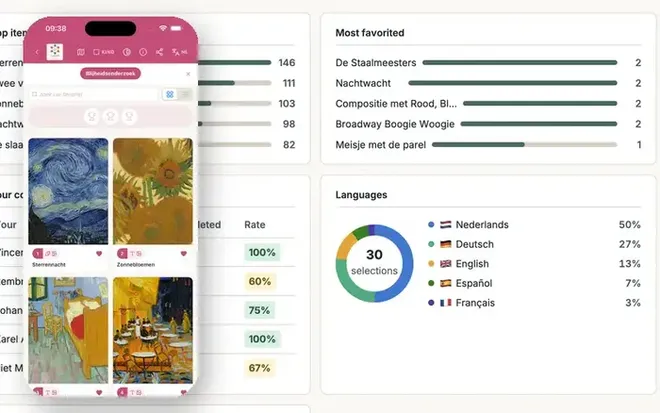
The perfect audio tour with Orpheo Mikro audioguides
Programmed via GuideXpresse Manager — no software installation, no developer needed.
Why an audio tour
This brochure helps you build an unforgettable audio tour with Orpheo Mikro audioguides, programmed via GuideXpresse Manager — GuideXpresse's online content environment. Manager runs entirely in the browser: there's nothing to install and no specific operating system required. It works on Windows, macOS or Chromebook, anywhere a browser runs and the computer has a USB port.
At a time when visitors crave in-depth, personal experiences, an audioguide is the perfect addition to most museums. It doesn't just add context and stories — it enriches the exhibition without limiting the visitor's freedom.
To create a successful audio tour, it's crucial to think through the content in advance: what do you want to tell, in how many languages, and with what depth options? The activation method also plays a role — do you want fully manual control via the keypad, or automatic activation via infrared or a remote control as well?
Producing audio files is a creative process that forms the core of the tour: from scriptwriting to recording with professional voice talent. Manager then takes the technical work off your hands — uploading audio and images, configuring settings and distributing the tour to the entire fleet of audioguides, all from one clear dashboard, no technical knowledge required.
This brochure dives deeper into all these elements. At the end you'll find a checklist you can work through step by step. Let's build the ideal audio tour together!
What's covered
- 01Preparing the story
- 02Preparing the audio files
- 03Configuring settings in Manager
- 04Operating the audioguide
- 05The audioguide's display
- 06Power management
- 07From Manager to the whole fleet
- 08Choosing the right headphones
- 09Checklist
- 10Contact
Preparing the story
With Orpheo Mikro audioguides you can get incredibly creative. You tell stories in multiple languages and, if you want, on different levels — think of a different narrative style for adults and children. Commercial messages, instructions or an extra layer of depth per stop are all possible too, as is composing the content of the OLED display.
It's wise to think this through in advance. In GuideXpresse Manager you build the tour as a project containing routes and stops (points of interest):
- Each project contains one or more routes. A route corresponds to one language and gets a short label (max. 12 characters) that the visitor sees in the language menu — for example NL, EN or FR.
- Want to offer a children's version too? Create an extra route per language with its own label, for example EN and EN-Jr. That's how you build multiple levels per language.
- Within a route you add as many stops as your tour needs, each with its own audio fragment, title and optionally an image.
- Want to offer an extra layer of depth? Add an extra stop with the more in-depth text and refer to it from the main text — for example: "Want to know more? Press the green i on the audioguide."
In this example we want to tell the most beautiful stories in four languages, to both adults and children. There are 14 stops, two of which have an extra layer of depth. In Manager this comes down to 4 languages × 2 levels = 8 routes, each with 14 stops (plus the in-depth stops where applicable).
In Manager we set the audioguides to turn on automatically as soon as they're taken out of the charger, and to immediately present the visitor with a menu to choose language and level — followed by a short, automatic welcome message in the chosen language.
Preparing the audio files
In the example above we're working with 4 languages and 2 levels: 8 routes of 14 stops each, so 112 audio fragments — plus the extra fragments for the depth layer.
| Language | Level 1 | Level 2 |
|---|---|---|
| Language 1 | Children | Adults |
| Language 2 | Children | Adults |
| Language 3 | Children | Adults |
| Language 4 | Children | Adults |
| Total | 8 routes × 14 stops = 112 fragments | |
Audio fragments are usually spoken word, but a mix with music or sound effects works just as well — the audioguides are stereo and 3D audio files can be used too.
You don't need to worry about file naming conventions: upload the audio file to the right stop in Manager and the system takes care of naming and placement in the audio folder itself. Manager accepts common audio formats and automatically converts them to mono or stereo OGG, ready for the audioguide.
For the best result, we recommend mixing your audio at -0.5 dB on the master output, with an average RMS level around -15 dB, sample rate 44.100 kHz.
Tip: keep audio fragments to around a minute — that matches the average visitor's attention span. Fragments that are too long lose the visitor's interest.
Configuring settings in Manager
You configure all preferences for your audioguides via Manager's settings screen — once, and immediately applied to the entire fleet as soon as you redistribute the tour to the guides. No separate software installation needed.
Commonly used settings
- Default volume (usually 75%)
- Keypad lock
- Contrast and monochrome display of the OLED screen
- How long the backlight stays on after a selection
- Auto shut-off after a period of inactivity
- On/off behavior when taken out of the charger
- Starting language/route and whether the language and level menu is shown
- Automatic activation via infrared beacons or a remote control (RF)
- Text or image on the display
Operating the audioguide
Visitors use the numeric keypad to select the number of the stop they want to listen to. As a rule of thumb, we recommend keeping texts around a minute long — this matches the average human attention span.
Besides fully manual operation, Orpheo Mikro audioguides also support activation via infrared beacons or a remote control (RF) — handy for lip-synced playback with a screen. This requires additional equipment in the room; you configure the RF channel and infrared sensitivity via Manager.
For a depth layer, refer to the green i-button in the standard text, for example: "Want to know more? Press the green i on the audioguide." The visitor then hears the extra stop. This is a powerful tool to make the visitor's experience even better.
The audioguide's display
The Orpheo Mikro's OLED display is flexible to configure. During use, the display typically shows: the chosen route (language/level), a time bar for the current fragment, the selected number, the fragment's title and the battery status.
Instead of text, you can also choose to show an image per stop. You crop these images directly in Manager to the exact screen resolution of 96 × 128 pixels — so you don't need a separate image editor.
Power management
To get the most out of your Orpheo Mikro audioguides (up to 18 hours per charge), it's worth optimizing power management. In Manager you can set, among other things: the intensity of the OLED display, how long the display lights up brightly after a selection, and after how many minutes of inactivity the audioguide switches itself off.
- Contrast: slightly lower
- Display brightness drops after, for example, 15 seconds
- Audioguide switches off after, for example, 10 minutes of inactivity
From Manager to the whole fleet
You build and edit your audio tour entirely online in Manager: composing routes, linking audio and images to stops, adjusting settings. Done? Then, via a short code procedure, you set the updated audio folder onto one device as the "master" — the other Orpheo Mikro audioguides then pick up the new content once you place the master in the charger. So this doesn't happen automatically: a code has to be entered first.
This way, the whole fleet has the same, up-to-date tour within a reasonable time — without needing a technician. A new temporary exhibition, an extra language, or a changed route order: you handle it yourself, whenever it suits you. Multiple staff members can also work in the same project, each with their own login.
Step by step: preparing the master
Download the project from Manager — this gives you the updated "app" folder.
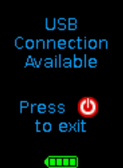
Put one audioguide (the "master") into USB mode by entering the code 1478963i — the display shows "USB connection Available". Connect via the minijack-to-USB cable and replace the old app folder on the Orpheo drive with the newly downloaded one. Then disconnect safely with the red button.
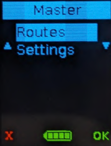
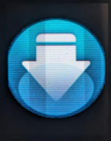
On the master, activate the code 7415369 (spells the word "M"). A menu appears with two options: "Routes" (the complete audio program) or "Settings" (only the tour settings). Confirm your choice with the green key; a downward arrow icon indicates the master is ready.
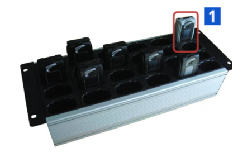
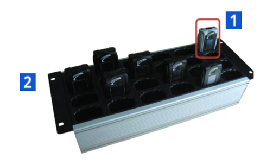
Place all other audioguides in the charger, leaving slot 1 (top right) empty. Insert the master last, into slot 1 — the transfer to the rest of the fleet then starts automatically. Follow the progress bars until "Upload OK" appears.
If the master is placed in any slot other than slot 1, the data transfer will not work correctly. On charger models with a separate power supply, that sits in slot 2 — slot 1 is always reserved for the master.
GuideXpresse also remains available for technical support, maintenance and repair of your Orpheo Mikro devices. Manager gives you the freedom to keep content up to date yourself; we're ready whenever something goes beyond content management.
GuideXpresse can also take care of installing your new tour across the whole fleet for you, for a one-off fee of €250 excl. VAT per rollout.
Choosing the right headphones
In museums and tourist attractions, headphones play just as big a role as the audio itself. Visitors want to hear clear stories while staying aware of their surroundings. We're happy to compare the options with you:
- Orpheo Airset — open and contactless, ideal in combination with an Orpheo Mikro audioguide
- Sennheiser HP02 — reliable and compact
Contact us for tailored advice for your audience and type of venue.
Checklist
| Done | Description |
|---|---|
| ☐ | How many languages do you want to offer? Who's arranging production and voice talent? |
| ☐ | Do you want to offer the stories on multiple levels (e.g. children/adults)? If so, how many? |
| ☐ | At how many stops do you want to add a depth layer? |
| ☐ | At how many stops in total do you want to tell something? |
| ☐ | Have the texts already been written in the base language? Have the translations been arranged? |
| ☐ | Do you want visitors to choose fully manually, or also automatic activation (infrared/RF) or lip-synced playback? |
| ☐ | Who will manage the content in Manager going forward, and how many people need their own login? |
| ☐ | How many audioguides do you need? (Orpheo Mikro is supplied per unit) |
| ☐ | How many headphones do you need? (two headphones can be connected per audioguide) |
| ☐ | Is there a theft or alarm notification involved? |
| ☐ | Have you thought about a pick-up and drop-off point? |
Ready to get started?
Go to manager.guidexpresse.com to get started right away, or contact us for tailored advice.
- GuideXpresse
- Edisonstraat 3E
2723 RS Zoetermeer
The Netherlands - Phone
- +31 (0)79 20 33 007
- aanvragen@guidexpresse.com
- GuideXpresse Manager
- manager.guidexpresse.com
- Licenses
- €39 for 1 month or €399 one-off (excl. VAT) View licenses